1. Camera
- interface
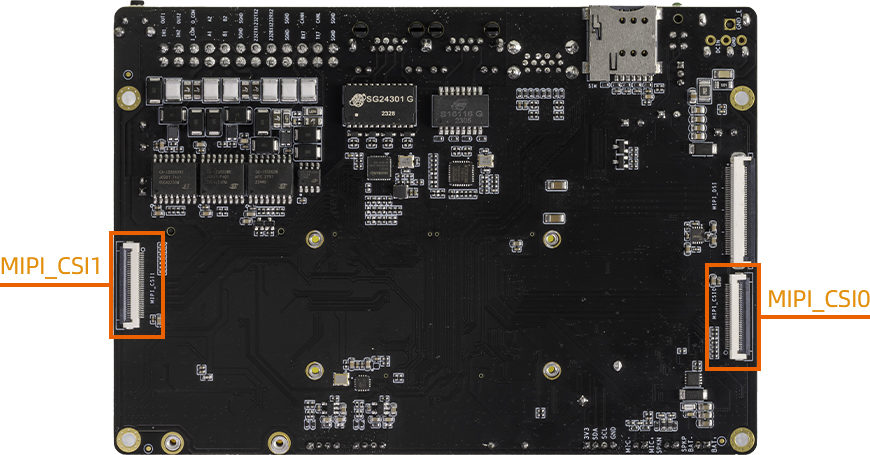
1.1. MIPI CSI
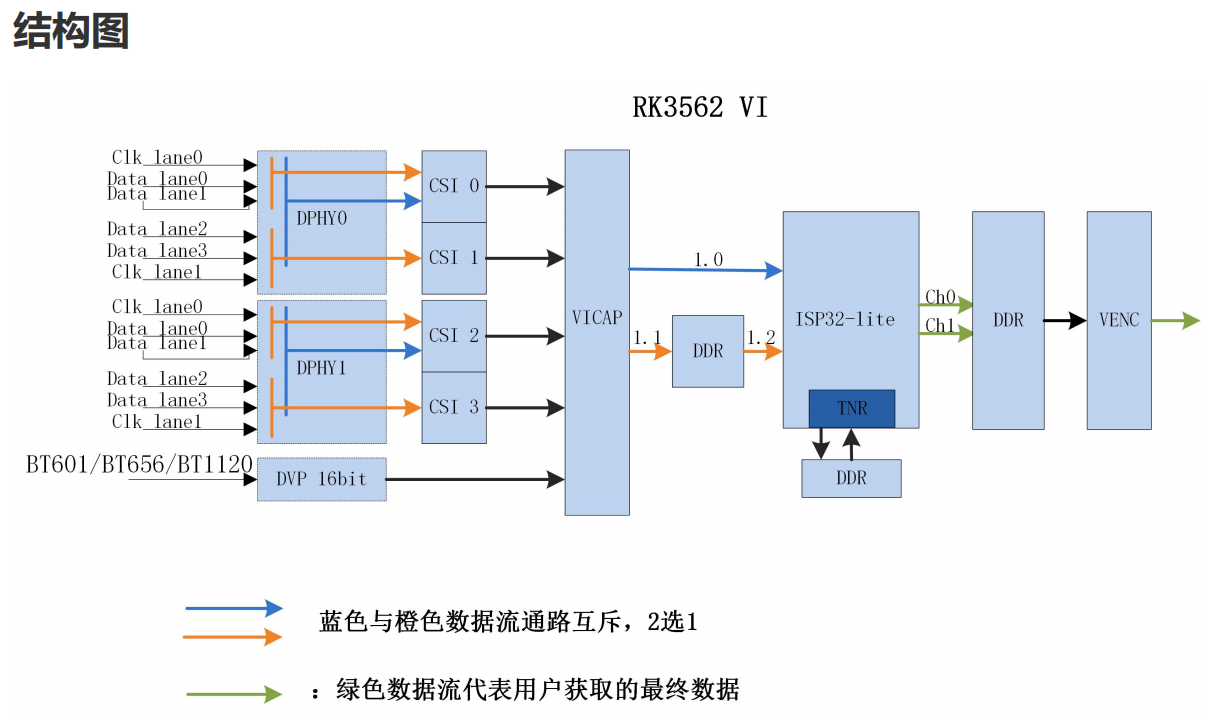
RK3562 platform has 2 4-lane dphy, each lane up to 2.5Gbps.
1.1.1. dphy
RK3562 has 2 4-lane dphy: csi2_dphy0 and csi2_dphy3.
Use csi2_dphy0 and/or csi2_dphy3 directly is called “full mode”.
You can split them for “split mode”:
csi2_dphy0 can split into 2 2-lane dphy: csi2_dphy1 and csi2_dphy2;
csi2_dphy3 can split into 2 2-lane dphy: csi2_dphy4 and csi2_dphy5.
1.1.2. mipi_csi
RK3562 has 4 mipi_csi:
Data comes from csi2_dphy0 (csi2_dphy1+csi2_dphy2) goes to mipi0_csi2 and mipi1_csi2;
Data comes from csi2_dphy3 (csi2_dphy4+csi2_dphy5) gose to mipi2_csi2 and mipi3_csi2.
1.1.3. vicap
Similarly, vicap has 4 nodes:
Data comes from mipi0_csi2 and mipi1_csi2 gose to rkcif_mipi_lvds and rkcif_mipi_lvds1;
Data comes from mipi2_csi2 and mipi3_csi2 gose to rkcif_mipi_lvds2 and rkcif_mipi_lvds3.
1.1.4. rkisp_vir
RK3562 has only one isp, which has 4 nodes: rkisp_vir0~3
1.2. Configuration
Reference document: SDK/docs/en/Common/ISP/ISP32-lite/Rockchip_Driver_Guide_VI_EN_v1.0.7.pdf
1.2.1. Dual 8MS1M Camera
800W px camera 8MS1M (XC7160_SC8238), it come with isp, so link to vicap is enough:
xc7160_0 -> csi2_dphy0 -> mipi0_csi2 -> rkcif_mipi_lvds
xc7160_1 -> csi2_dphy3 -> mipi2_csi2 -> rkcif_mipi_lvds2
For details please refer to the DTS: SDK/kernel/arch/arm64/boot/dts/rockchip/rk3562-firefly-aio-3562jq-dual-xc7160.dtsi
1.2.2. Dual IMX415 Camera
IMX415 is RAW camera, so link it to rkisp:
imx415_0 -> csi2_dphy0 -> mipi0_csi2 -> rkcif_mipi_lvds -> rkcif_mipi_lvds_sditf -> rkisp
imx415_1 -> csi2_dphy3 -> mipi2_csi2 -> rkcif_mipi_lvds2 -> rkcif_mipi_lvds2_sditf ->rkisp
For details please refer to the DTS: SDK/kernel/arch/arm64/boot/dts/rockchip/rk3562-firefly-aio-3562jq-dual-imx415.dtsi
rkisp need rkaiq_3A_server in userspace to handle stream. (Work in progress)
1.3. Select Camera Conf
SDK/kernel/arch/arm64/boot/dts/rockchip/rk3562-firefly-aio-3562jq.dts included rk3562-firefly-aio-3562jq-dual-xc7160.dtsi by default. Which means using dual 8MS1M.
You can change that inclusion if you want other cameras. Remember to re-build kernel after modification.
1.4. Camera Debug
Use v4l2-ctl to capture camera frame data
# First use v4l2-ctl to list available devices
v4l2-ctl --list-devices

# capture frames to out.yuv
v4l2-ctl --verbose -d /dev/video0 --set-fmt-video=width=1920,height=1080,pixelformat='NV12' --stream-mmap=4 --set-selection=target=crop,flags=0,top=0,left=0,width=1920,height=1080 --stream-to=/data/out.yuv
Copy file out.yuv to computer and play it with ffplay:
ffplay -f rawvideo -video_size 1920x1080 -pix_fmt nv12 out.yuv
1.5. Android Use Camera App
In Android, you can use “Camera” app to use camera.
1.6. Linux Preview Camera
You can use this script to preview camera, you can change the video device:
#!/bin/bash

export DISPLAY=:0
export XAUTHORITY=/home/firefly/.Xauthority
export LD_LIBRARY_PATH=$LD_LIBRARY_PATH:/usr/lib/aarch64-linux-gnu/gstreamer-1.0
WIDTH=1920
HEIGHT=1080
SINK=xvimagesink

gst-launch-1.0 v4l2src device=/dev/video0 ! video/x-raw,format=NV12,width=${WIDTH},height=${HEIGHT}, framerate=30/1 ! videoconvert ! $SINK &

wait
1.7. IQ Files
Supported raw camera iq files are under external/camera_engine_rkaiq/rkaiq/iqfiles/isp32_lite/.
If you need to use raw sensor camera, please check if there is a matchable iq file under /etc/iqfiles/ directory.