3. Upgrade Partition Image
3.1. Enter Bootloader Mode
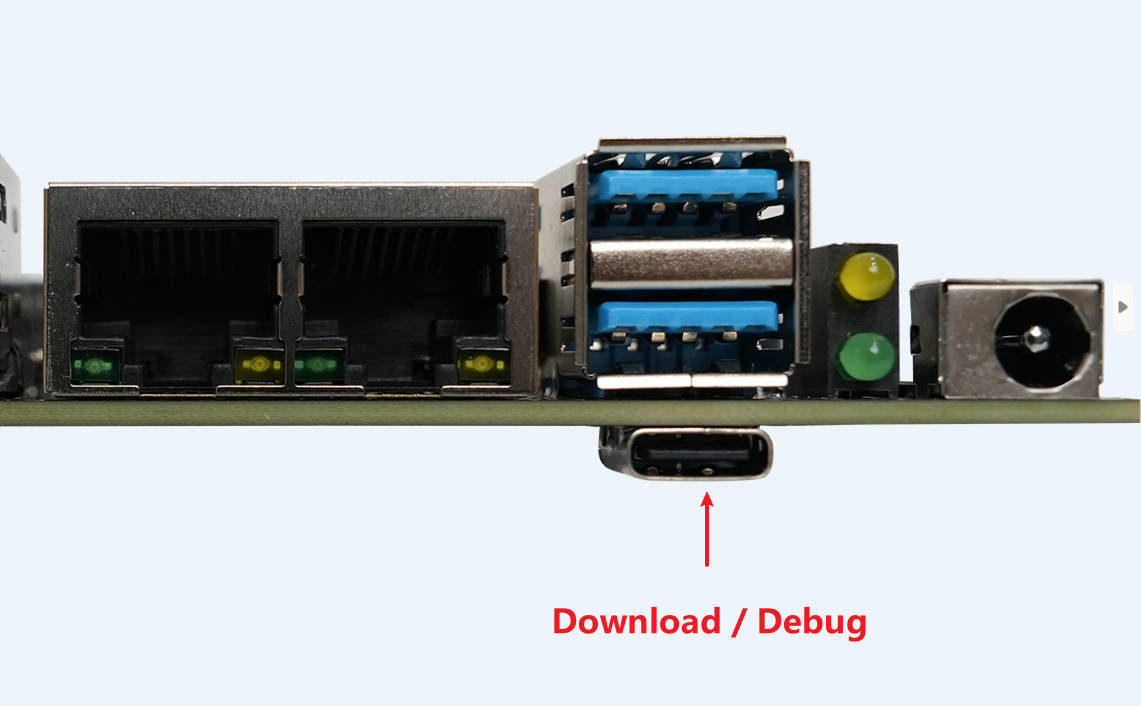
While device is running normally, connect device’s download port with PC through Type-A to Tyep-C USB cable, then run this command on device terminal or debug console:
sudo systemctl reboot bootloader
3.1.1. Check Bootloader
Open windows terminal (PowerShell), navigate to the location of Android Platform Tools, then run “.\fastboot.exe devices”
If the device is in the bootloader mode, fastboot will show a detected device:
PS D:\path\to\platform-tools> .\fastboot.exe devices
xxxxxxxx         fastboot
If fastboot shows nothing, please check driver installation and usb cable.
3.2. Download Partition Image
Usage: fastboot.exe flash partition name path to image
For example:
.\fastboot.exe flash boot D:\path\to\boot.img

.\fastboot.exe flash dtbo D:\path\to\dtbo.img

# reboot device after download.
.\fastboot.exe reboot
Notice: Download wrong file will cause system failure, so check before download. Seek help first if don’t understand. Don’t act blindly.