3. Debug Console
Debug serial port is very useful during debugging and troubleshooting, especially when the GUI is unavailable.
3.1. Connection
AIO-8550JD4 provides two types of debug console.
- 3pin ttl slot
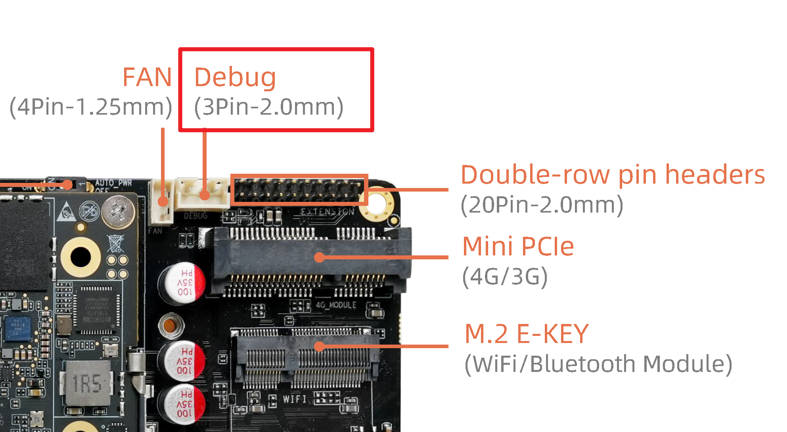
It needs additional usb-to-ttl module, please refer to Serial Module
- Type-C Port
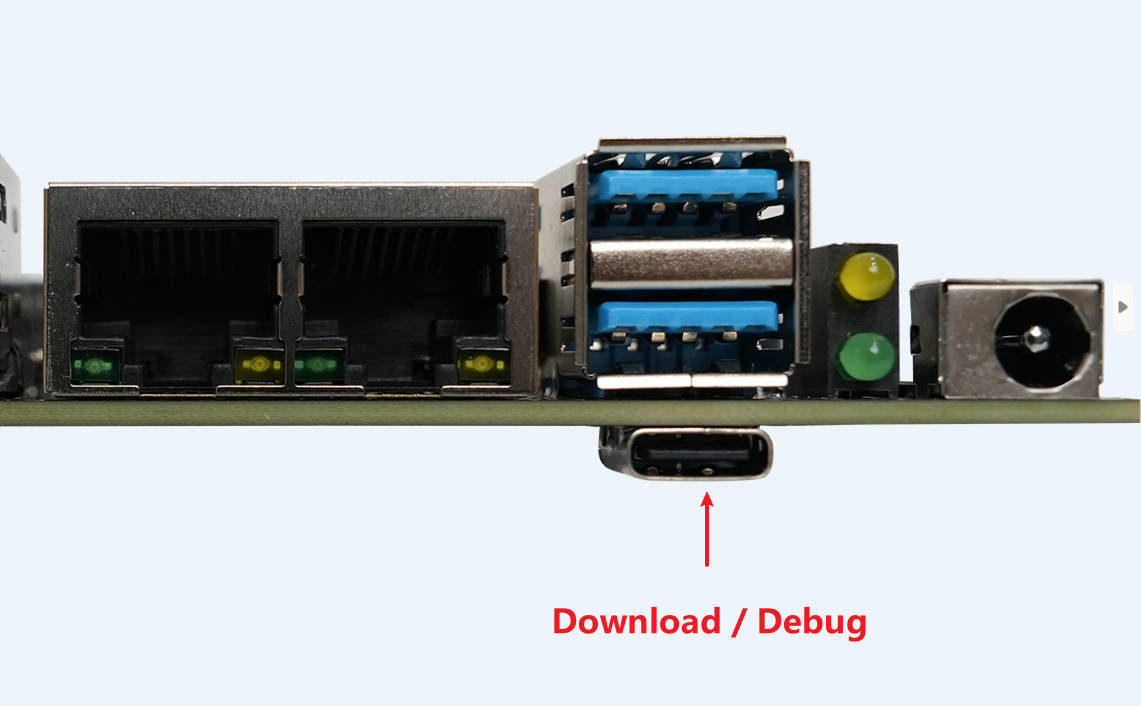
This Type-C port also used as Download port, so you need to set the following dip switch to “ON” to enable Debug function.
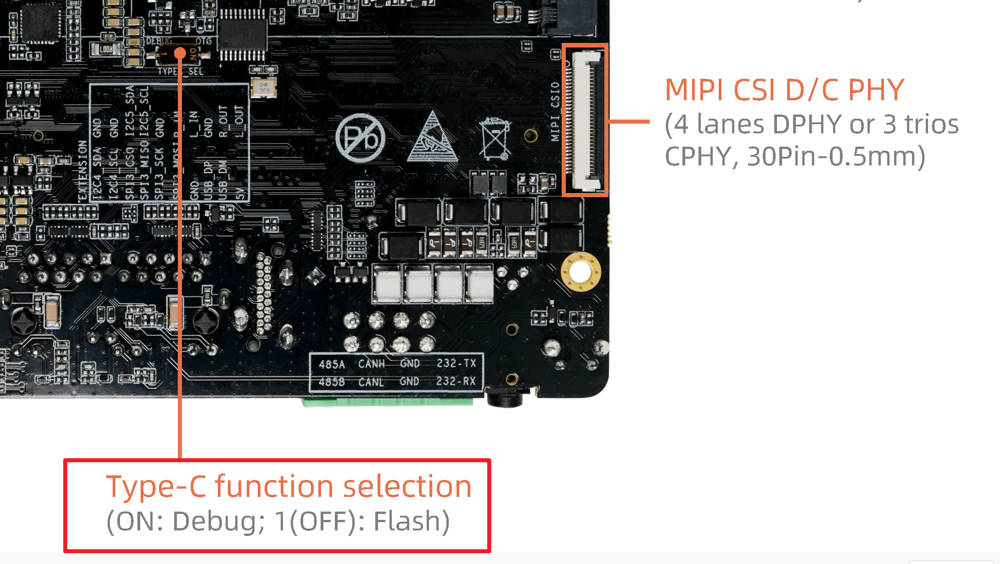
Then use USB cable connect the device with PC.
Notice: These two types of debug console are the same internally. They are just different interface types, not two serial ports. Only select one to use.
3.2. Install Driver
- If you choose 3pin ttl slot
Linux PC don’t need to install driver.
Windows PC driver installation is in Serial Module
- If you choose Type-C port
The serial-to-USB chip is PL2303GL.
Linux PC don’t need to install driver.
Windows PC needs driver, please download PL23XX-M_LogoDriver_Setup_4500.zip from Download Link
Extract the archive and double click the exe file to install, accept the EULA and always click “next”, then click “finish”.
3.3. Usage
After driver installation, you will find “Prolific PL2303GL USB Serial COM Port” or “Silicon Labs CP210x USB to UART Bridge” in Windows device manager.
In Linux it will be /dev/ttyUSBX or /dev/ttyACMX, the number X may be different, you can unplug and plug again to find the corresponding device.
Use the serial tool like MobaXterm or Minicom to open the serial device, baudrate is 115200, 8 data bit, 1 stop bit, no parity check.