Accessing the Server (BMC)
Login Notes
aBMC presets default parameters at the factory for initial commissioning. The following table lists the default login, network, and serial port configuration. For device security, be sure to change the default account password on first login and rotate it regularly.
| Category | Item | Default Value |
|---|---|---|
| aBMC Management System Data | Login Username | admin |
| Login Password | admin | |
| aBMC Management Network Port IPv4 Address ● MGMT or GM network port |
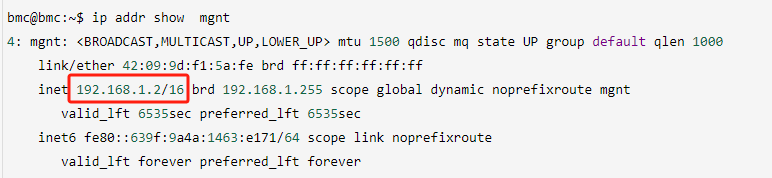
Management Network Port IP and Subnet Mask | Default IP Address: 192.168.1.2 |
| Default Subnet Mask: 255.255.255.0 | ||
| BMC Console Serial Port | Baud Rate | 115200 |
| BMC Linux User Data | Login Username | bmc |
| Login Password | bmc |
Console Login
The console login supports the following methods.
<CodeBlockTab value="Web_login">
### Web Remote Console Login
aBMC provides a visual Web management interface for server-wide monitoring, hardware operations and maintenance, firmware upgrades, and other operations.
#### Environment Preparation
##### Server Network Cabling
Before logging in, connect the aBMC management network port to the LAN and ensure Layer 3 connectivity between the operation PC and the BMC management IP.
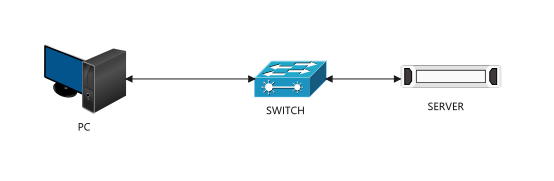
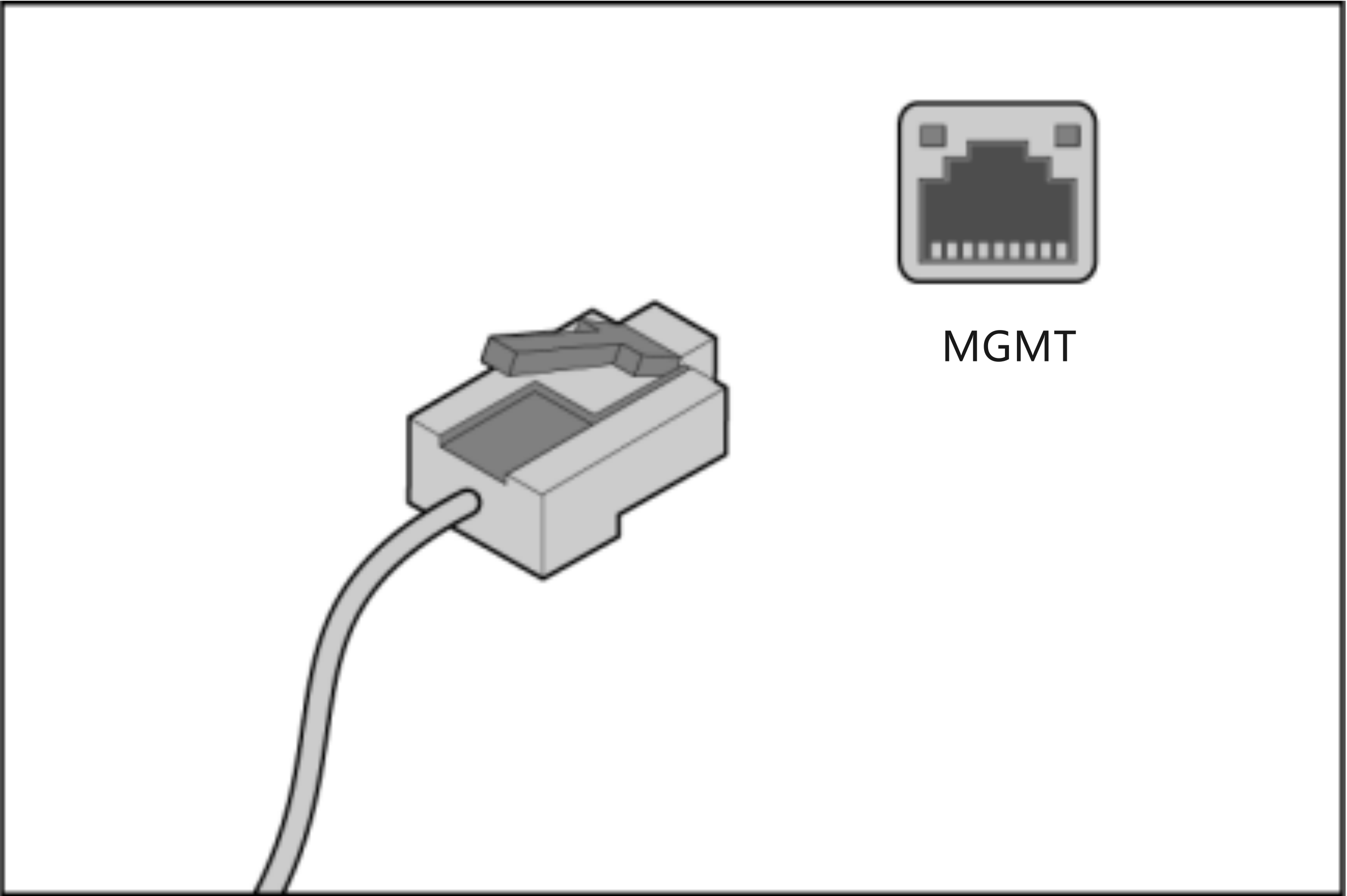
Two types of management network ports are supported; choose as needed:
- **Shared network port**: Reuses the server's service NIC, carrying both service traffic and BMC management traffic;
- **Dedicated MGMT network port**: An independent hardware network port that carries only BMC management commands, isolating the service network.
#### Query the aBMC Management IP
You can run the `ip` / `ifconfig` commands in the server's local Linux system to read the MGMT network port IP address.
### Web Client Environment Requirements
The browser compatibility and resolution standards are as follows:
| Browser | Minimum Version | Resolution Requirement |
| :--- | :--- | :--- |
| Google Chrome | 48.0 or later | ≥1366*768, 1600*900 or later recommended |
| Mozilla Firefox | 50.0 or later | ≥1366*768, 1600*900 or later recommended |
| Internet Explorer | 11 or later | ≥1366*768, 1600*900 or later recommended |
| Microsoft Edge | 97 or later | ≥1366*768, 1600*900 or later recommended |
#### Web Page Login Steps
Using the Chrome browser as an example:
1. Enter `https://aBMC-management-IP` in the browser address bar; a certificate security warning will pop up when accessing.
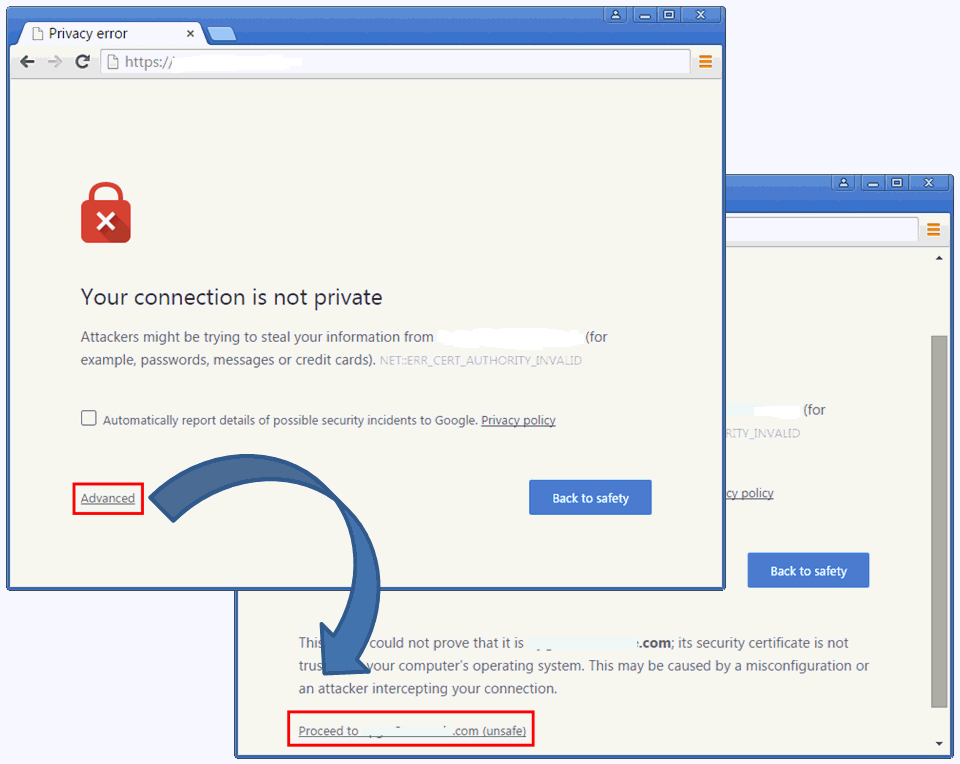
2. Click `Advanced` on the page;
3. Select `Proceed to (site) (unsafe)` to ignore the certificate warning and jump to the login page.
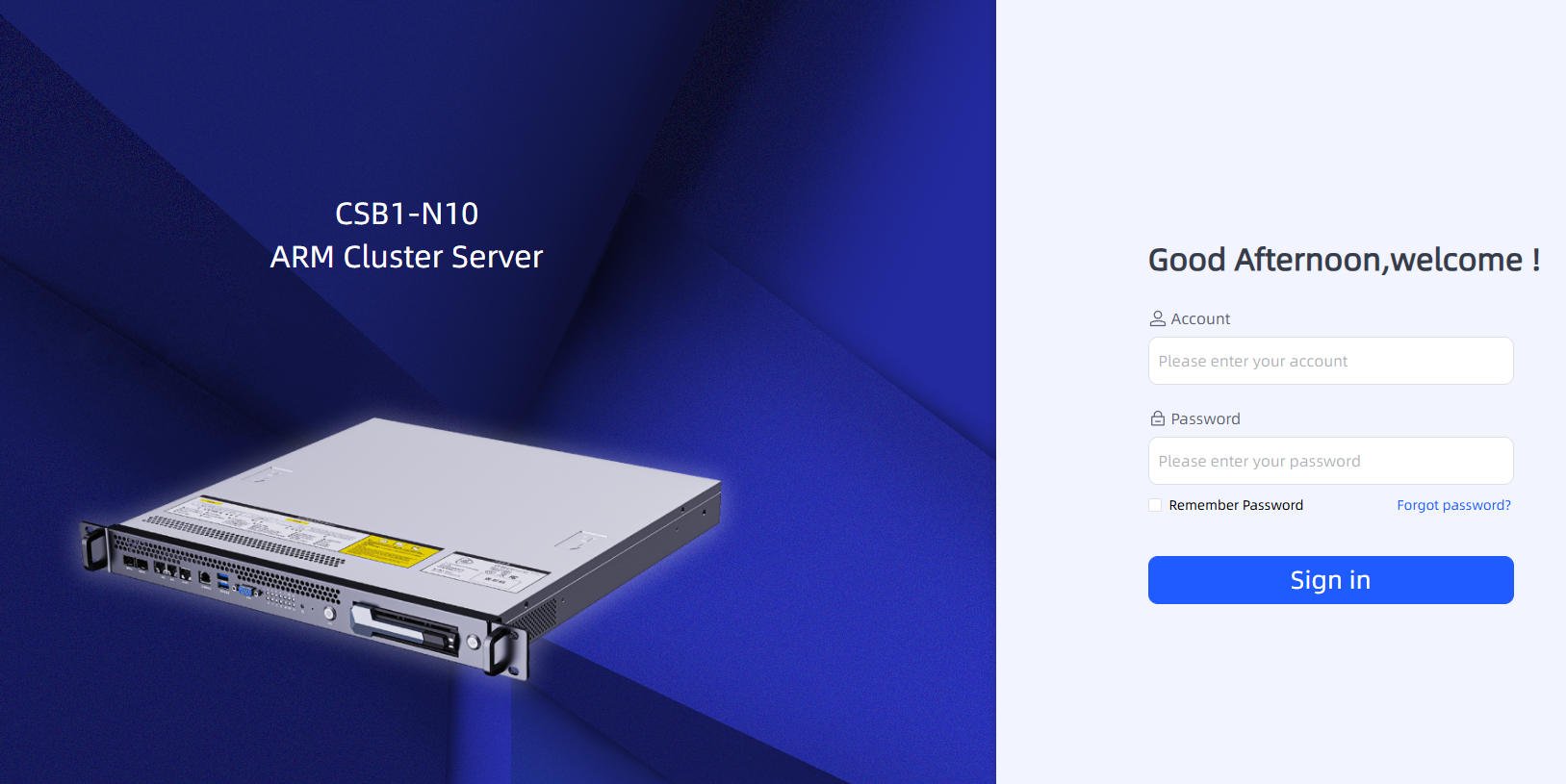
4. Enter the default account and password to log in and enter the system overview dashboard:
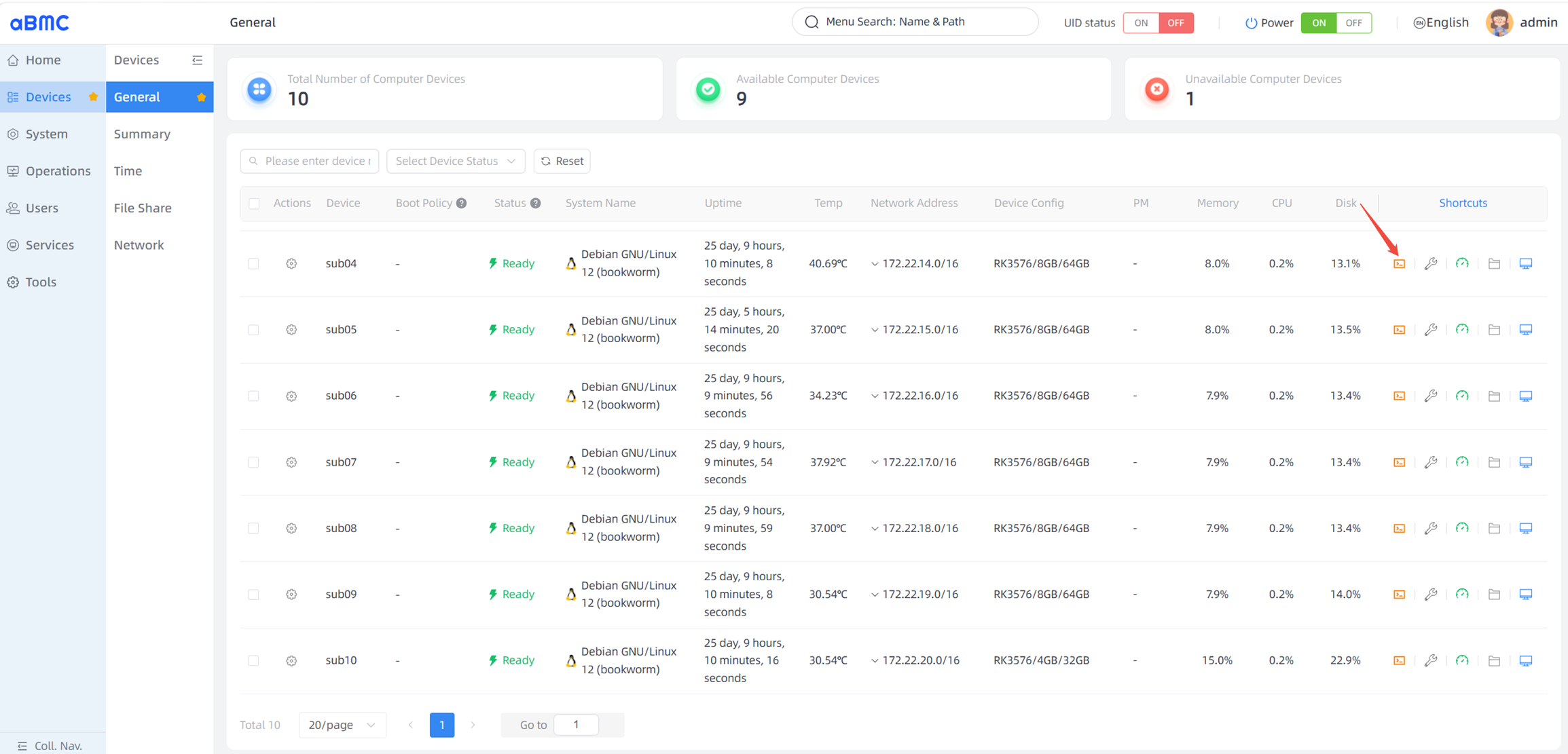
- Device panel: View the hardware running status of the ARM compute units and execute underlying Shell commands;
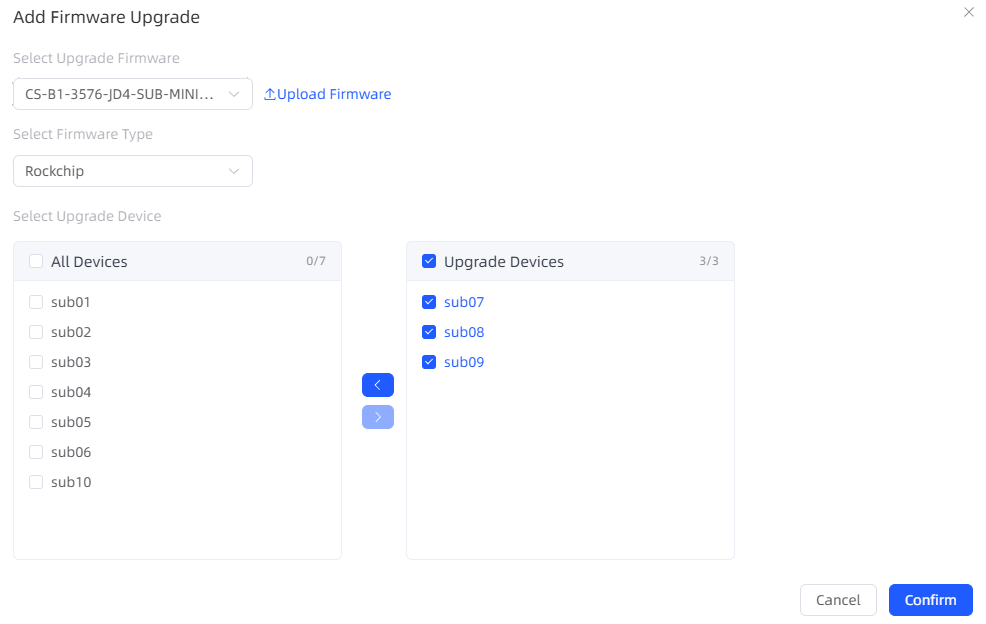
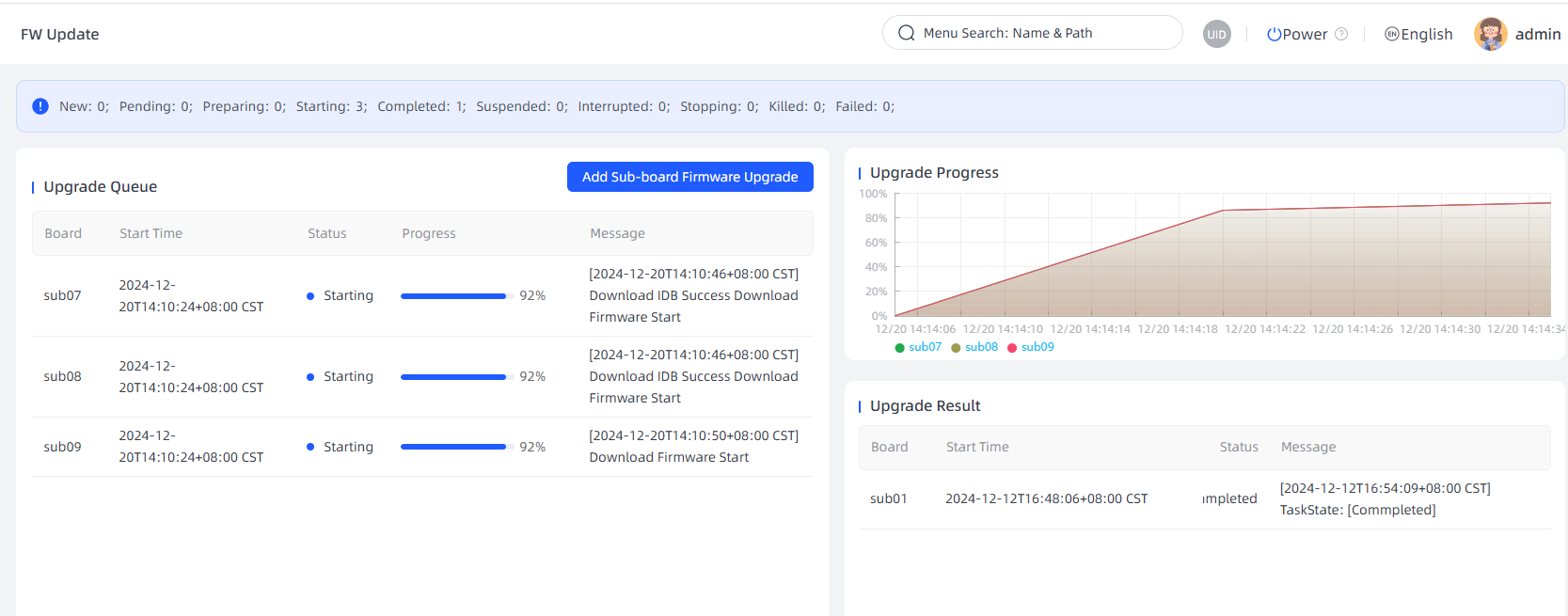
- Firmware upgrade page: Batch update the firmware of each compute unit;
> Security tip: On first login, change the default account password immediately and update it regularly to reduce the risk of device intrusion.
> For complete feature descriptions, refer to the accompanying "aBMC User Guide".
</CodeBlockTab>
<CodeBlockTab value="Console_login">
### Console Serial Login
1. Use an RJ45 serial cable to connect the server's Console port to the debug terminal;
2. Configure the terminal software parameters:
- Baud rate: 115200
- Data bits: 8
- Parity: None
- Stop bits: 1
- Flow control: None
3. After the connection is established, enter the BMC Linux account and password;
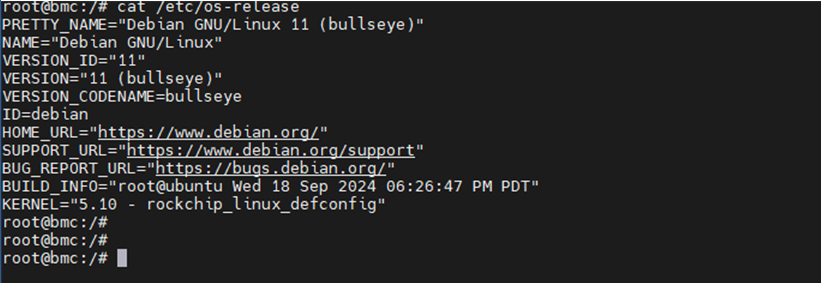
4. After login is complete, you can execute underlying system query commands.
</CodeBlockTab>
<CodeBlockTab value="Ssh_login">
### SSH Remote Login
1. Use the system's built-in `ssh` tool or a terminal application such as MobaXterm locally;
2. Enter the aBMC management IP and the default account and password to complete the login.
</CodeBlockTab>